Browser agents, such as an AI assistant driving Playwright through MCP, mostly do not look at screenshots. They read the page's accessibility snapshot: a tree of roles and names, the same information a screen reader uses. If an element has no role or no name there, the agent has to guess, or cannot find it at all.
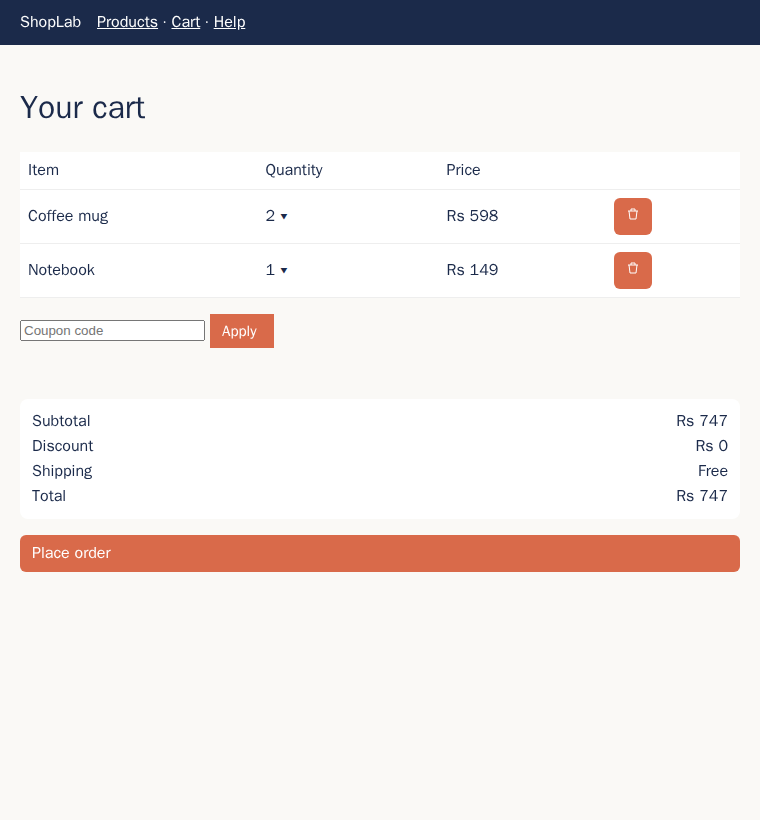
That makes accessibility testing and agent testing the same job. A control drawn on a canvas, an icon button with no label, or a "button" that is really a styled div all look fine in a screenshot.
Your task
Below is ShopLab's cart in a build with accessibility defects: a screenshot, part of its HTML, and the accessibility snapshot Playwright produced for it. For each element, decide what an agent gets from the snapshot.
Sign in to practise
The lesson is free to read. A free account lets you talk to the practice bots, run your code and save your score. You will come back to this lesson.
How this is checked: Each row has a right label. At least 6 of 8 must match. For the full score, a harder check: all 8 must match.
Core checks earn 50 points and the harder checks the other 50. You can submit as many times as you like.
About this lesson
Accessibility snapshot for AI browser agents: why agents miss unlabelled controls
AI Testing for QA Engineers·Intermediate·Agents in the browser: Playwright MCP and test agents
How it works
Browser agents, such as an assistant driving Playwright through MCP, mostly read the page's accessibility snapshot rather than its pixels. The snapshot is a tree of roles and names, the same information a screen reader uses.
An element without a role or a name is nearly invisible there. A control drawn on a canvas, an icon button with no label, or a styled div acting as a button all look fine in a screenshot, and an agent has to guess at them or cannot find them at all. That makes accessibility testing and agent testing the same job.
About the assignment
Compare a screenshot of ShopLab's cart with its HTML and accessibility snapshot, and label each element by whether an agent could find and use it.
What you will do
1Look at the screenshot and list the controls a person sees.
2Find each one in the snapshot and note its role and name.
3Label the elements that are missing a role, a name, or both.
Common mistakes
Judging from the screenshot
An element that looks like a button may not be one in the snapshot.
Treating any text as a name
Nearby text is not the element's accessible name unless it is associated with it.
In a real test suite
Fixing these defects helps disabled users and agents at once. Teams increasingly add accessibility snapshot checks to CI for exactly that reason.
You can inspect the same tree yourself: Playwright can print an element's accessibility snapshot, and browser developer tools show each element's computed role and name. Checking a new page this way takes minutes and catches problems before an agent or a screen reader user does.
Related lessons
Be the agentDrives the shop through the same snapshot as an agent.