
Automation tool (Selenium) · Java
Locators and XPath
Finding elements by id, name, CSS and XPath, and writing robust locators.
Learn: Locators and XPath in Selenium Java8 minute read
A locator is the rule Selenium uses to find an element on the page, such as "the input whose id is email". Interviewers spend a lot of time on locators because live coding tasks fail on them more than on anything else. A good locator is unique (it matches exactly one element), stable (it still works after small page changes) and easy to read.
A quick reminder of what you are searching. A web page is written in HTML, and each part of it is an element. This one input element has a tag name (input) and three attributes (a name and a value, written as name="value"):
<input id="email" name="email" class="field">
Here id is email, name is email and class is field. Locators work by tag name, attribute or text. DevTools, the tools built into Chrome (open them with F12), let you look at these elements on any page.
The eight strategies
In Java you build a locator with the By class:
By.id("email")
By.name("email")
By.className("btn")            // one class only
By.tagName("h1")
By.linkText("Log out")         // full text of a link
By.partialLinkText("Inbox")    // part of the link text
By.cssSelector("form#login input[name='email']")
By.xpath("//button[normalize-space()='Save']")
Pick the simplest one that is unique and stable:
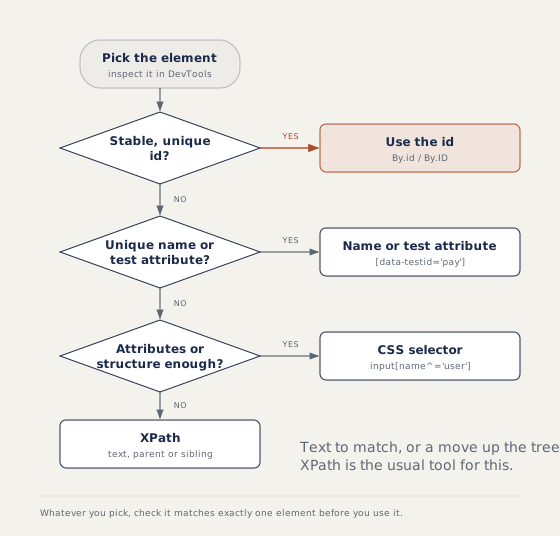
A test attribute such as data-testid="pay" is an attribute developers add only for tests, so it rarely changes. By.className takes a single class; for two classes write the CSS .btn.primary. Tag names suit groups ("every row"), not single targets.
findElement versus findElements
findElement returns the first match. If nothing matches, it throws NoSuchElementException. findElements returns a List<WebElement>; when nothing matches, the list is empty, never null. So "check that the error message is absent" is written as driver.findElements(By.id("error")).isEmpty().
CSS selectors
#emailmeans id email,.errormeans class error,input#emailadds the tag.[name='email']matches an attribute;^=means starts with,$=ends with,*=contains.form > inputis a direct child;form inputis any element inside.
CSS cannot match visible text, and it has no step that goes from a child up to its parent (XPath has .. and parent::).
XPath
XPath is a language for walking the page's element tree. An absolute XPath lists every step from the root, like /html/body/div[2]/form/input[1], and breaks with any layout change. A relative XPath starts with // and filters with conditions in square brackets. Inside a path, / means direct child and // means any depth.
//button[text()='Sign in']
//a[contains(text(),'Inbox')]
//input[starts-with(@id,'user_')]
//span[normalize-space()='Total']
normalize-space() trims and collapses spaces, which avoids "the text looks right but does not match" problems.
Axes: moving around the tree
An axis moves from one element to a related one: parent, ancestor (any level up), following-sibling and so on. When the target has nothing stable, start from a neighbour that does:
//label[text()='Email']/following-sibling::input[1]
//td[text()='Ravi']/ancestor::tr
//tr[td[text()='Ravi']]//button[text()='Edit']
The last one, "the Edit button in Ravi's row", is a common live task. A sibling is an element with the same parent, and a tr is one table row.
Dynamic ids and repeated matches
When an id changes on every load (btn_48213), match the fixed part with starts-with or CSS ^=, use the visible text, or start from a stable label nearby. The lasting fix is asking developers for test attributes.
To take the second of several matches, (//button[@class='add'])[2] picks the second in the whole page. //button[@class='add'][2] means "the second matching button inside its own parent" and often matches nothing.
Relative locators and shadow DOM
import static org.openqa.selenium.support.locators.RelativeLocator.with;

WebElement password = driver.findElement(with(By.tagName("input")).below(By.id("email")));
WebElement inner = driver.findElement(By.id("host")).getShadowRoot().findElement(By.cssSelector("#inner"));
Relative locators (Selenium 4) find an element by where it is on the screen, compared with an anchor element you already know: above, below, toLeftOf, toRightOf, near. Window size can change their result, so use them when attributes fail. A shadow root is a hidden sub-document inside a component; search inside it from its host, with CSS only, because Chrome rejects XPath there.
How to answer in an interview
State your order of preference and the reason (unique and stable first). When writing a locator live, say "I would check it matches one element in DevTools", then type $x("//button[text()='Save']") or $$("button.save") in the Chrome console. For XPath versus CSS, say CSS is shorter and XPath can match text and move up the tree.
Common mistakes
- Copying the absolute "full XPath" from DevTools.
- Passing two class names to
By.className. - Using an index such as
[3]when a text or label would identify the element. - Checking absence with
findElementinside a try-catch instead offindElements(...).isEmpty().
Recap
Prefer id, then name or a test attribute, then CSS, then XPath. Use relative XPath with contains, starts-with and axes for awkward cases. Remember that findElement throws and findElements returns an empty list, and test every locator before you code it.
21 questions0/21 solved
| Status | Question | Difficulty | Asked in |
|---|---|---|---|
| Not started | Locate a field by its id | Easy | Asked in: Accenture, Capgemini, TCS +1 |
| Not started | One element versus many: what happens when nothing matches? | Easy | Asked in: Accenture, Capgemini, Infosys +2 |
| Not started | Find every matching element and count them | Easy | Asked in: Accenture, Capgemini, Infosys +2 |
| Not started | Locate an element by its name attribute | Easy | Asked in: Accenture, Capgemini, TCS +1 |
| Not started | Locate an element by one class name | Easy | Asked in: Accenture, Capgemini, TCS +1 |
| Not started | Locate a heading by its tag name | Easy | Asked in: Accenture, Capgemini, TCS +1 |
| Not started | Match a link by its exact text | Easy | Asked in: Accenture, Capgemini, TCS +1 |
| Not started | Match a link by part of its text | Easy | Asked in: Accenture, Capgemini, Infosys +2 |
| Not started | Find elements with basic CSS selectors | Easy | Asked in: Accenture, Capgemini, Infosys +1 |
| Not started | Match attributes with CSS selectors | Easy-Medium | Asked in: Accenture, Capgemini, Infosys +2 |
| Not started | Find buttons with basic XPath | Easy | Asked in: Accenture, Capgemini, Infosys +2 |
| Not started | Write dynamic XPath with contains() and starts-with() | Easy-Medium | Asked in: Accenture, Capgemini, Infosys +2 |
| Not started | Move from a child to its parent with XPath | Medium | Asked in: Accenture, Infosys |
| Pro+ | Absolute and relative XPath: single and double slash | Easy | Asked in: Accenture, Capgemini, Infosys +2 |
| Pro+ | Find the input next to a label with an XPath axis | Medium | Asked in: Accenture, Infosys |
| Pro+ | XPath versus CSS selector: which do you prefer and why? | Medium | Asked in: Accenture, Capgemini, Infosys +1 |
| Pro+ | Elements whose attributes change on every load | Medium | Asked in: Capgemini, Infosys, TCS +1 |
| Pro+ | Two buttons match. How do you pick the second one? | Medium | Asked in: Accenture, Capgemini, Wipro |
| Pro+ | Relative locators in Selenium 4 Java | Medium | Asked in: Accenture, Infosys, Wipro |
| Pro+ | Find an element inside a shadow DOM (Java) | Medium-Hard | Asked in: Happiest Minds |
| Pro+ | Test an XPath or CSS selector in the browser before coding | Easy | Asked in: Infosys |
The first 2 questions of each topic are free. Pro+ opens every question.